.png)
Dev Machine Guard now inventories browser extensions installed on developer machines. A new Browser Extensions page in the StepSecurity dashboard shows every extension detected across your fleet, what the browser is currently letting it do, where it came from, and which devices have it.
If your developers use a browser, extensions are already installed. Until now, most security teams had no way to know which ones, and no way to answer the question that matters more: what can those extensions actually see.
The Browser Is the One Developer Tool Nobody Inventories
Every other layer of the developer toolchain has a control point. MDM inventories applications. Registry allowlists govern packages. IDE marketplaces have admin approval flows, and extensions installed through them can be governed by policy.
Browsers and MDM products do offer extension policies and inventory, but most organizations still lack a unified cross-browser inventory across their developer machines. A developer clicks Add to Chrome, accepts a consent dialog, and it is done. No procurement step, no review gate, and usually no record that it arrived.
That browser is signed into GitHub, AWS, GCP, Vault, the internal admin panel, and the CI dashboard. An extension granted access to every site can read what is on the page. Depending on its additional API permissions, it may also be able to read the cookies that authenticate those sessions, or observe the requests the browser makes. It does not need to escape the browser to reach anything valuable, because everything valuable is already in the browser.
And the install decision is made once. Extensions update themselves silently, and they change ownership without notice. The extension running today is not necessarily the software anyone approved, and nobody is asked again.
This Attack Surface Is Already Active
The mechanism is not hypothetical. We have covered it repeatedly, one layer over.
In the nx Console VS Code extension compromise, a trusted extension with a legitimate publisher was pushed a malicious update through a compromised publishing path, reaching every installed copy automatically. The pattern is the one that makes extensions attractive: attack the publisher once, and the distribution channel delivers to every machine.
With the malicious IoliteLabs extensions, attackers skipped the takeover entirely and published their own extensions to a marketplace, targeting a specific developer population with a backdoor across Windows, macOS, and Linux. Marketplace presence is not review, and it is certainly not trust.
The Cline v2.3.0 compromise showed the third variant: the developer tool itself as the delivery vehicle, installing something the developer never asked for.
Now apply all three patterns to the browser, where review is lighter, updates are faster and quieter, and a unified cross-browser inventory is rarely in place. The payloads are already asking for exactly what lives there. The Atomic stealer campaign that hijacked more than 400 AUR packages lists browser cookies and session tokens first among what it takes, ahead of SSH keys and cloud credentials, because a stolen session is a live authenticated session that does not need to be cracked or reused against a login page.
A malicious browser extension does not need to steal those cookies from disk. It is already inside the session.
What the Browser Extension Inventory Shows You
The Browser Extensions page answers that question continuously, not just during an incident.
Fleet-wide inventory
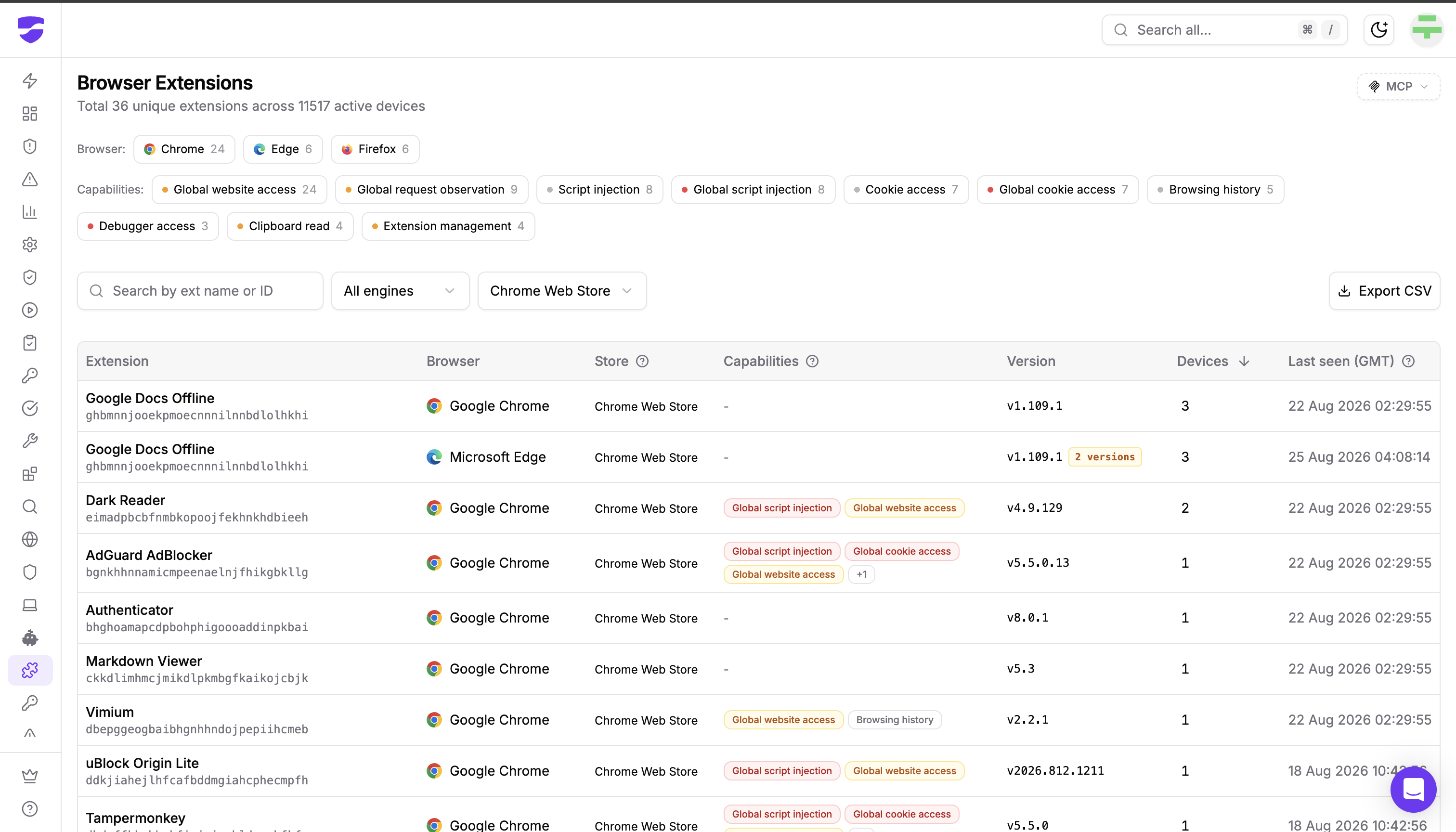
Every extension detected across your organization appears in a single table: name, extension id, browser, store, version, how many devices run it, and when it was last seen. Chrome, Edge, and Firefox are covered on macOS, Windows, and Linux, including Firefox under snap and flatpak and Edge under flatpak.
Filter chips break the inventory down by browser and by capability, and the store and engine filters narrow it further. The full inventory downloads with Export CSV.
Capabilities, not permission strings
This is the part that changes what a security team can do with an extension inventory.
Raw manifest permissions are close to unreadable at scale, and they describe what an extension asked for rather than what it holds. Dev Machine Guard rolls the permissions the browser is actually honouring into ten named capabilities: Global website access, Global request observation, Script injection, Global script injection, Cookie access, Global cookie access, Browsing history, Debugger access, Clipboard read, and Extension management.
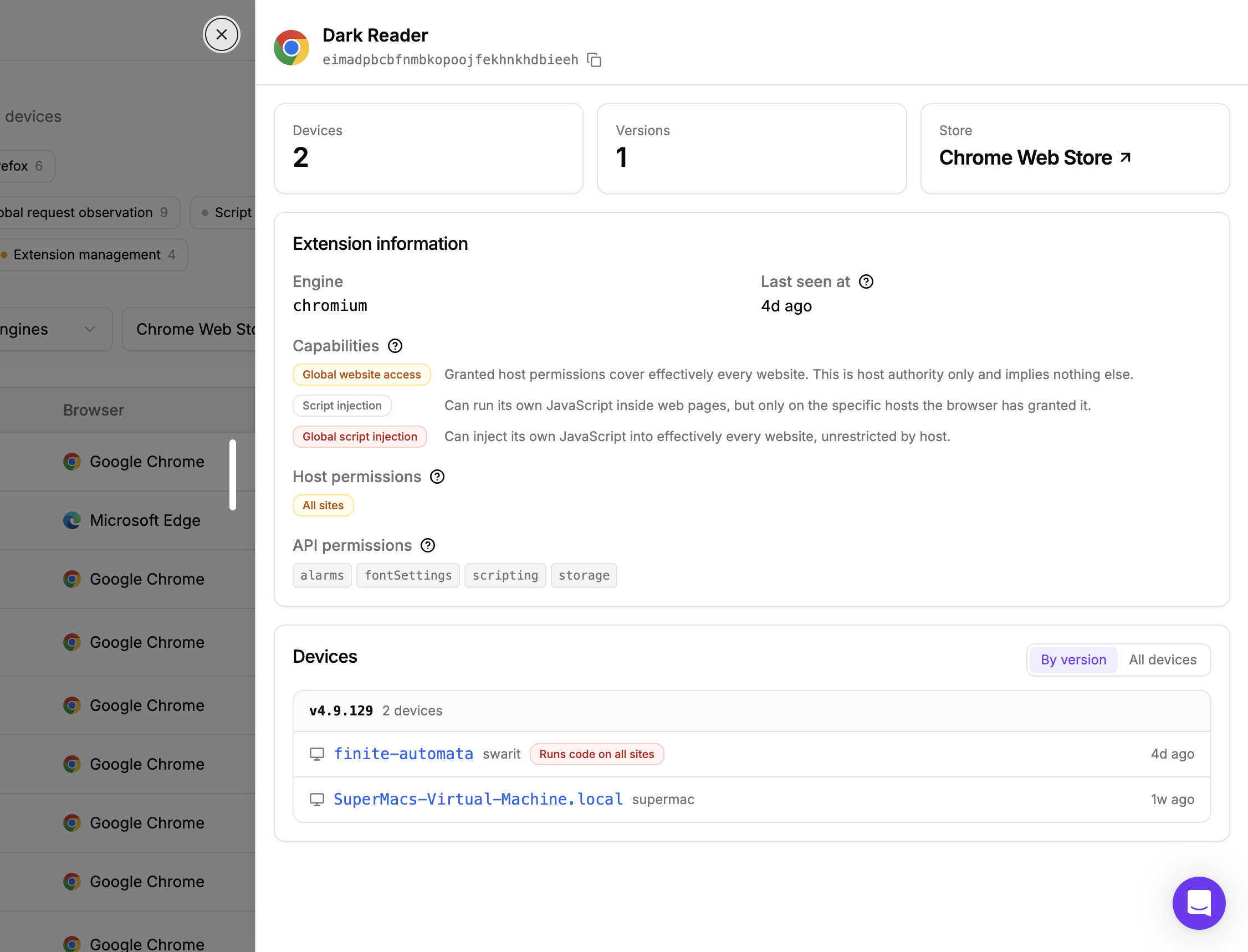
Two things make this an accurate picture rather than a manifest dump. Each capability is derived from the evidence that capability requires: some from host permissions, some from browser API permissions, and some from both. So an extension holding the scripting permission but access to only two named domains is reported as Script injection rather than the global form. And permissions a developer has granted and later withheld are not counted, so the inventory reflects what the extension can do right now.
One reading note: a fleet capability means the authority was confirmed on at least one device. An absent capability means it was not confirmed, which is not the same as the extension being safe.
Global script injection, Global cookie access, and Debugger access are called out in red, and Global website access and Global request observation in amber. Those are the ones where a single bad update reaches everything the developer does in that browser, and they are where a review should start.
Where the extension came from
The Store column separates extensions attributed to a known marketplace from those that are Self-hosted, have No store, or are Unknown. Chromium extensions are attributed using known update URLs. A Firefox signature does not establish Mozilla Add-ons provenance, since a signed extension may also be self-hosted, so Firefox store origin may appear as Unknown.
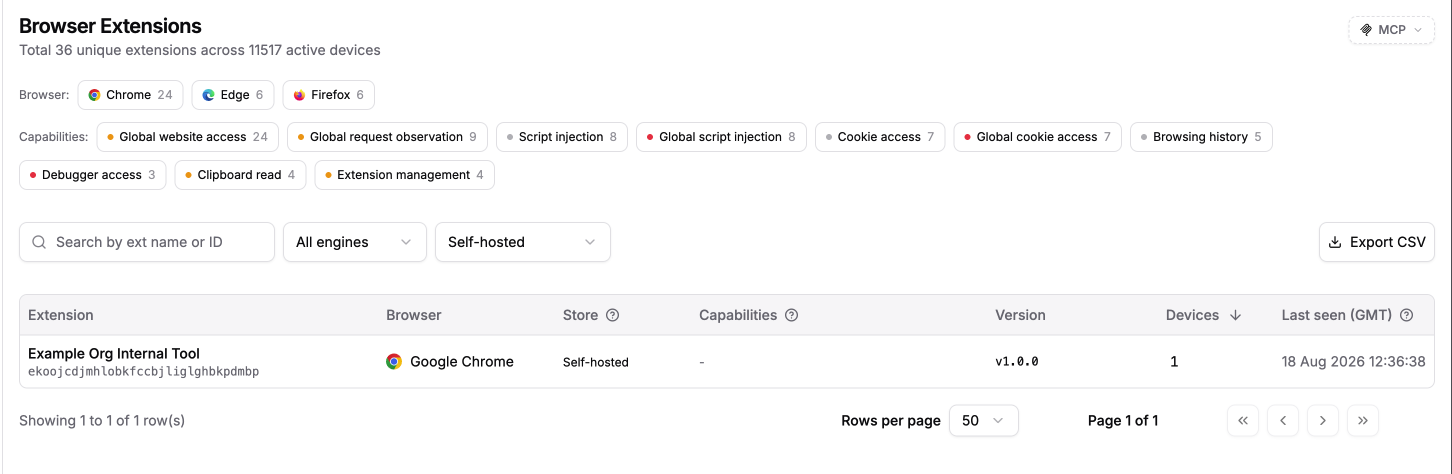
Self-hosted confirms an update source outside the known stores, which means updates arrive from infrastructure outside a marketplace's control. No store and Unknown mean provenance could not be established, so they are investigation candidates rather than proof that marketplace review was skipped. Installation source is recorded per device. Unpacked extensions loaded through developer mode are marked Developer loaded. Other external installation mechanisms may be marked Sideloaded, Registry, or Policy.
Flags that qualify an install
Flags mark installs that need different treatment. Preinstalled marks an extension the browser shipped itself rather than a developer choosing it, which is context rather than a finding. Developer loaded marks an unpacked extension loaded through developer mode, and Sideloaded, Registry, and Policy mark the other external installation mechanisms. For Chromium installations, browser-cached marketplace state may also identify an extension as Delisted or Flagged. Dev Machine Guard does not contact the marketplace during scanning, so those values may lag a store change until the browser refreshes its own metadata.
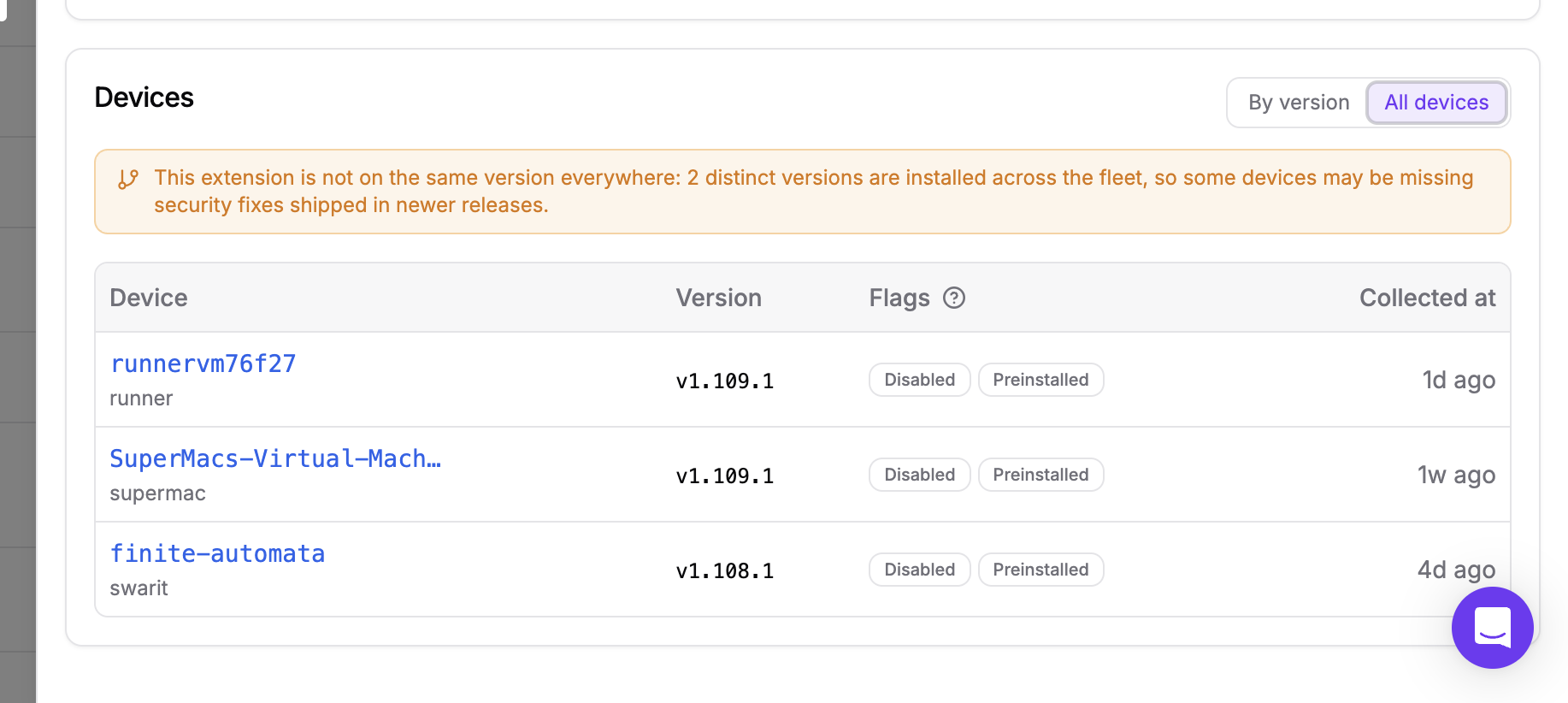
A delisted extension still running on developer machines is the strongest single signal on this page. The marketplace has already made its judgement, and the copies on your fleet did not disappear when the listing did.
Per-device detail
Each extension lists affected devices, grouped by version or listed individually with flags and collection time. Version totals are complete for the fleet, and the device list shows the first 500 affected devices.
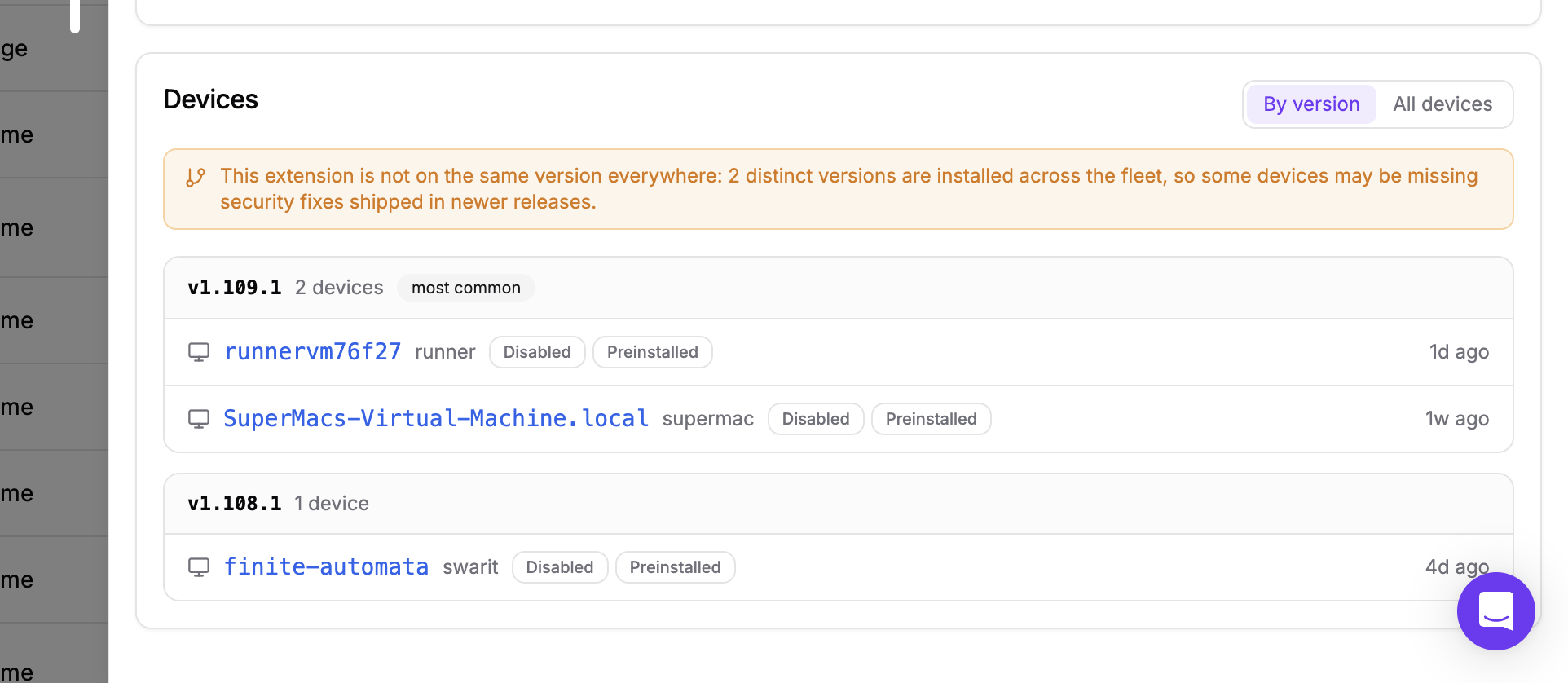
When an advisory names a specific bad version, the version grouping takes you straight to the machines still on it. During an incident, this is the difference between a fleet-wide email asking developers to check their browsers and a filtered list of affected devices, with complete version counts and the first 500 device rows.
Only the browsers' own extension state files are read. No browser is launched and no extension store is contacted, and browsing history, cookies, saved passwords, page content, and profile names are never collected.
What Security Teams Can Do With This Today
- Incident response: An extension is disclosed as compromised. Search the extension id and get the affected devices and complete version counts in seconds.
- High-capability review queue: Filter to Global script injection, Global cookie access, and Debugger access to build a prioritized list of the extensions that can see everything.
- Unmanaged extension hunting: Filter the store to Self-hosted, No store, or Unknown to surface extensions whose provenance is outside a marketplace or could not be established.
- Provenance review: Filter by store to find extensions whose updates come from outside a marketplace, or whose origin could not be established, and decide which belong on a developer machine.
- Complete developer surface: Combined with Dev Machine Guard's IDE extension inventory, AI agent and MCP server inventories, and agent skills inventory, the browser was the last unmonitored place code runs on a developer machine.
How To Get Started
If you already run Dev Machine Guard, browser extension scanning is included from agent v1.16.0. The Browser Extensions page populates across eligible devices after their next scan.
On macOS, browser state files sit in TCC-protected locations, so grant the agent Full Disk Access through your MDM for complete results.
Follow this interactive demo to see how this feature works:
If you are new to Dev Machine Guard, see the installation guide to deploy the agent across your fleet, and the Browser Extensions documentation for the full feature reference.