.png)
IDE extensions have become one of the most reliable ways into a developer machine. In the past year alone, the IoliteLabs campaign published malicious VS Code extensions that dropped backdoors on Windows, macOS, and Linux. The Nx Console VS Code extension was compromised through its supply chain. A malicious Cline release silently installed OpenClaw on developer machines. And 15 malicious JetBrains plugins stole AI API keys from 70,000 developers.
The pattern is consistent: extensions run with the developer's privileges, and anyone on the team can install anything the marketplace offers. Most security teams have no control over that decision.
Last year, Dev Machine Guard gave you visibility into every extension installed across your fleet. Today we are closing the loop. Device Policy lets you define which VS Code extensions are approved and enforce that decision on every developer machine, using the IDE's own policy mechanism.
From Inventory to Enforcement
Device Policy has two building blocks: policies and profiles.
A policy defines which extensions and versions are allowed or blocked. You build it from the extension inventory Dev Machine Guard already observes across your fleet, so you approve what your teams actually use instead of guessing.

Each entry shows how many devices have the extension installed. You can also add extensions manually or import an existing extensions.allowed JSON, .mobileconfig, or preferences plist.
Version handling is a first-class decision. For each rule, allow any version, restrict to stable releases so pre-release and preview builds are rejected, pin exact versions, or approve everything from a trusted publisher.
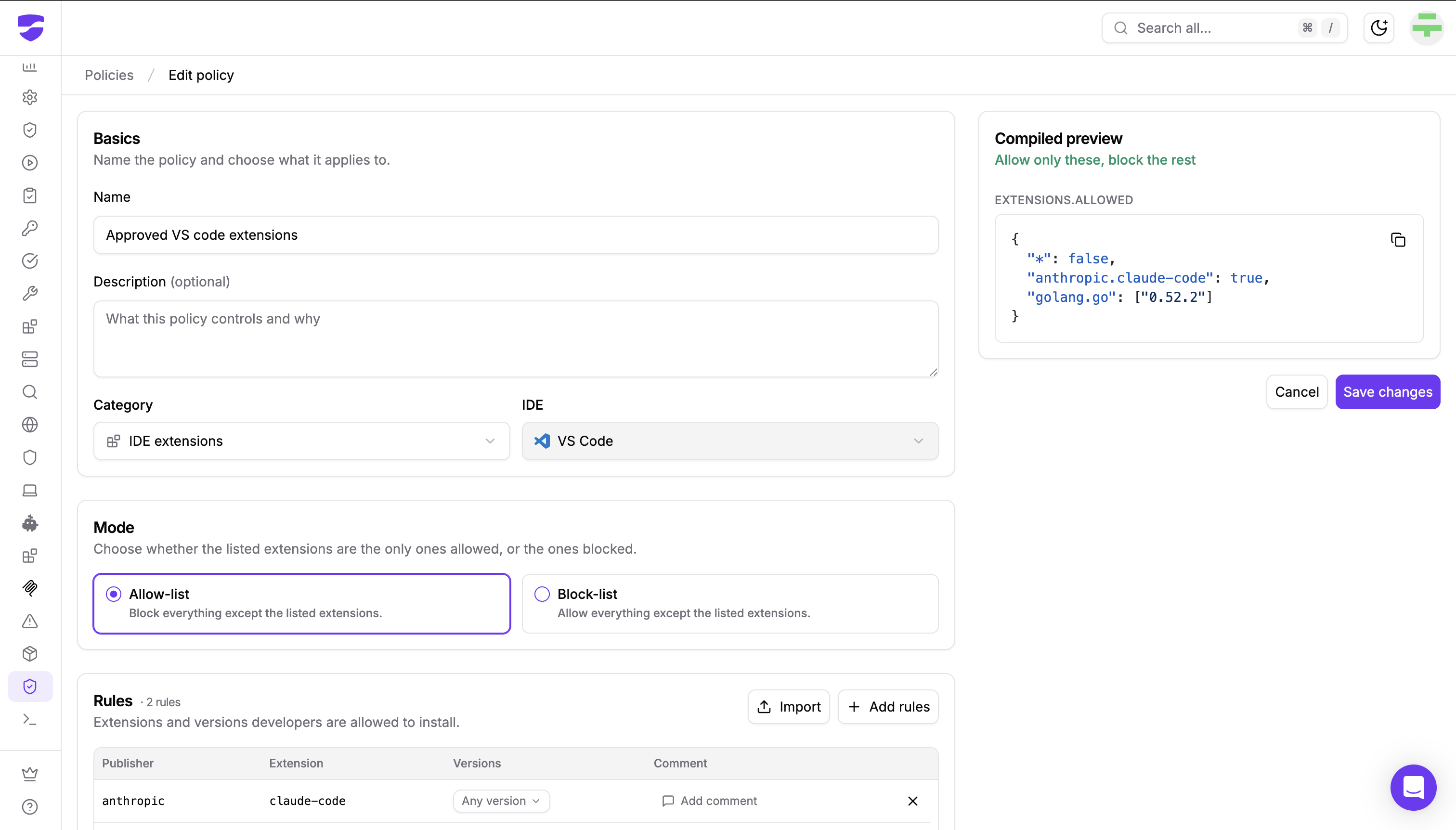
As you build, a live compiled preview shows the exact configuration devices will enforce. For VS Code, that is the native extensions.allowed policy format:
{
  "*": false,
  "anthropic.claude-code": true,
  "golang.go": [
    "0.52.2"
  ]
}
There is no proprietary enforcement layer to trust. What you see in the preview is what the IDE enforces.
Delivered Through the MDM You Already Use
A profile bundles policies and delivers them to devices. From the profile's Delivery tab, download a ready-made artifact for each OS and assign it in Intune, Jamf, or Kandji:
- macOS: a .mobileconfig configuration profile, plus a preference file for the com.microsoft.VSCode domain
- Windows: a PowerShell remediation script for Intune
- Linux: a policy.json to deploy to /etc/vscode/policy.json

Because the operating system enforces the policy, it is tamper-proof: developers cannot work around it by changing IDE settings. Devices pick the profile up the next time they connect, usually within hours, and the profile's Compliance tab shows every device with its enforcement state, last seen time, and agent version.
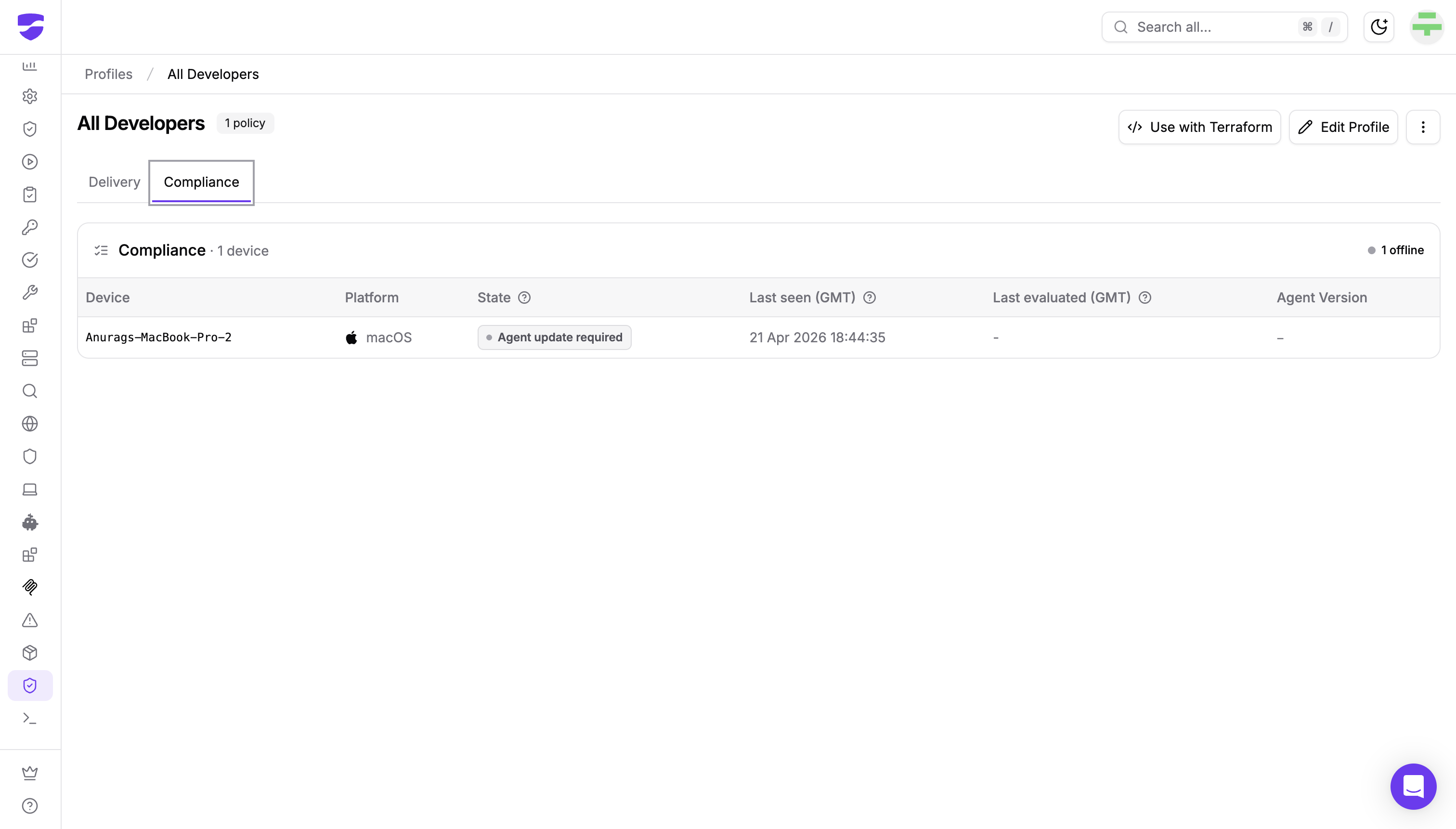
No MDM? The DMG agent can enforce profiles directly. Assign the profile to all devices or specific ones, and the agent installs and continuously enforces it, making it tamper-resistant with no MDM in the loop.
Policy as Code
Teams that manage infrastructure through Terraform can manage Device Policy the same way. Every profile includes a guided, one-time import flow using the StepSecurity Terraform provider, with import blocks prefilled for the profile and its policies. After the import, extension governance lives in your repository, reviewed and versioned like the rest of your configuration.
Get Started
Device Policy is generally available today under Developer Machines > Device Policy in the StepSecurity dashboard. Create a policy from your fleet's inventory, bundle it into a profile, and enforce it through your MDM or the DMG agent in minutes. The documentation walks through the full setup.
Follow this interactive demo to see this feature in action:
Start Free to try Device Policy with your own fleet, or request a demo to see it live.